The menu of where you are, and navigation at any moment
In Alex, two landmarks are enough: the sidebar shows the menu of where you are, and at any moment, ⌘K or a click on the name at the top opens the navigation. This guide explains both, with the three levels your companies are sorted on.
1. Three levels, one logic
Organization: your firm. It brings together your groups, your team and billing.
Group: several companies managed together, with the people who work on them. By client, by region, by business: you build them the way you work.
Company: a legal entity, with its documents, legal registers, share capital and operations.
For example, the organization “Cabinet Aubrac” has a group “Clients Lyon”, which holds the company “Atelier Morel”.
2. The menu of where you are
The name at the top of the sidebar says where you are. Below it, the menu lists that place’s pages.
In an organization: Companies, Operations, Organization chart and Persons for everyday work; Access, Billing and Settings for administration. Each page covers all the organization’s groups.
In a company: its own pages, Overview, Registers, Documents, Equity, Persons, Operations.
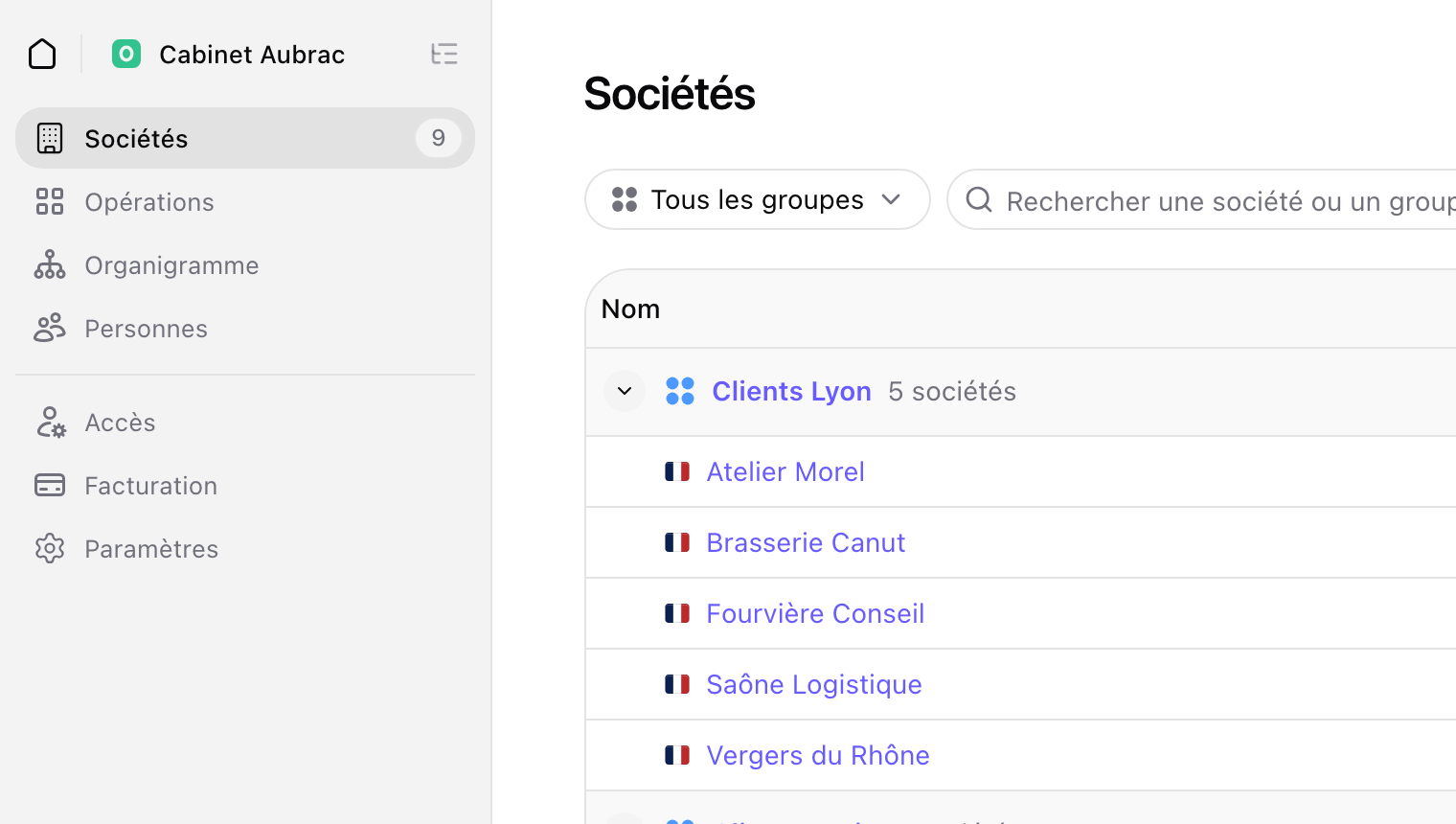
The house, left of the name, takes you back to the organization’s home. Billing is shown to the Owner, Administrator and Billing roles.
3. Navigation, at any moment
From any page, press ⌘K (Ctrl+K on Windows), or click the name at the top of the sidebar: the navigation opens, with the whole organization as a tree, its groups and their companies.
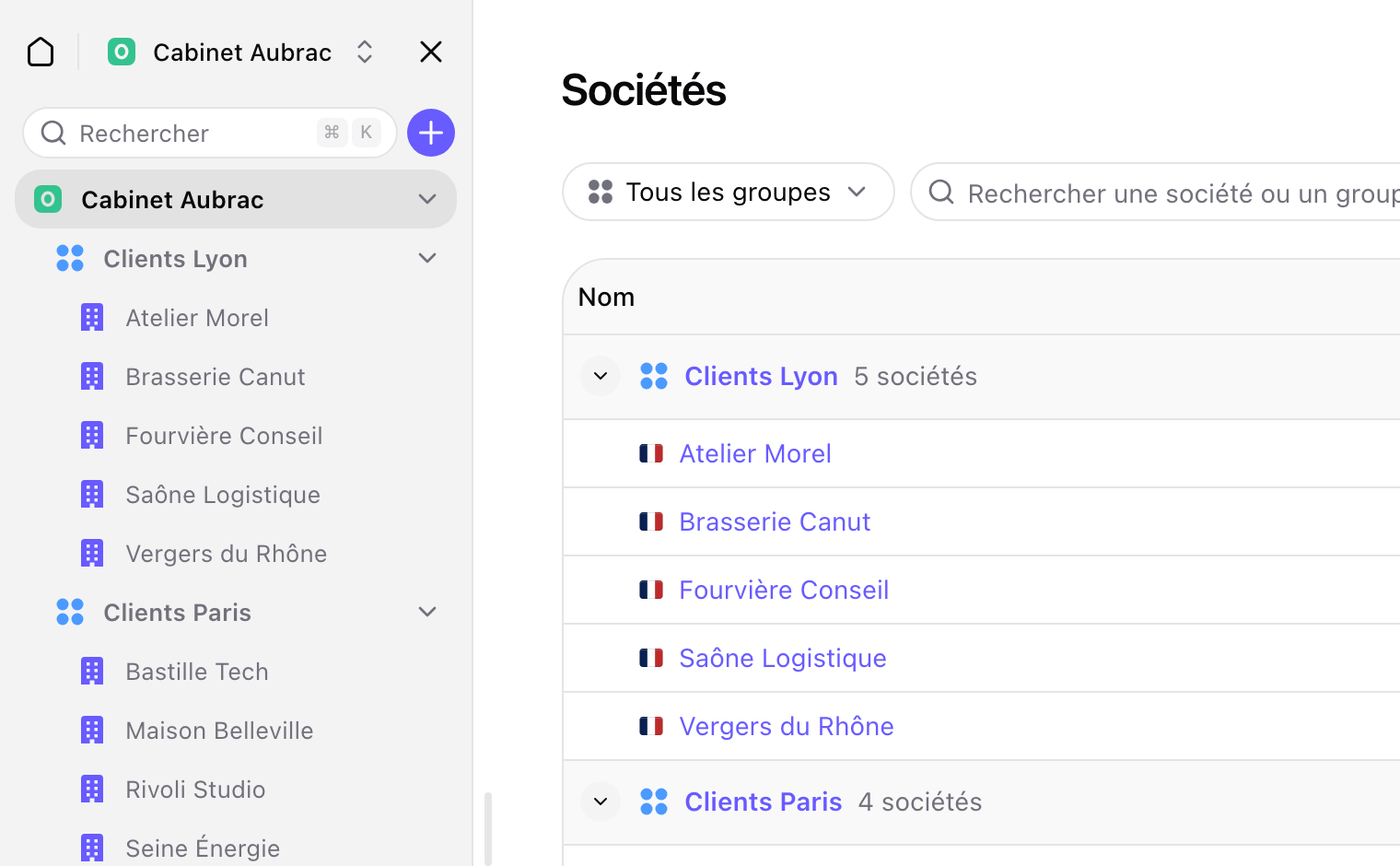
Search: with ⌘K, the search is ready. Type a few letters and the company or group shows up.
Open a company: click it. You are there, and the sidebar shows its menu.
Open a group: click it. Its companies are shown, filtered on that group.
The cross, top right, closes the navigation and brings the menu back.
4. A group is a filter
To see one group only, pick it in the “All groups” list at the top of the page. Companies, Operations, Persons and Access then show that group only.
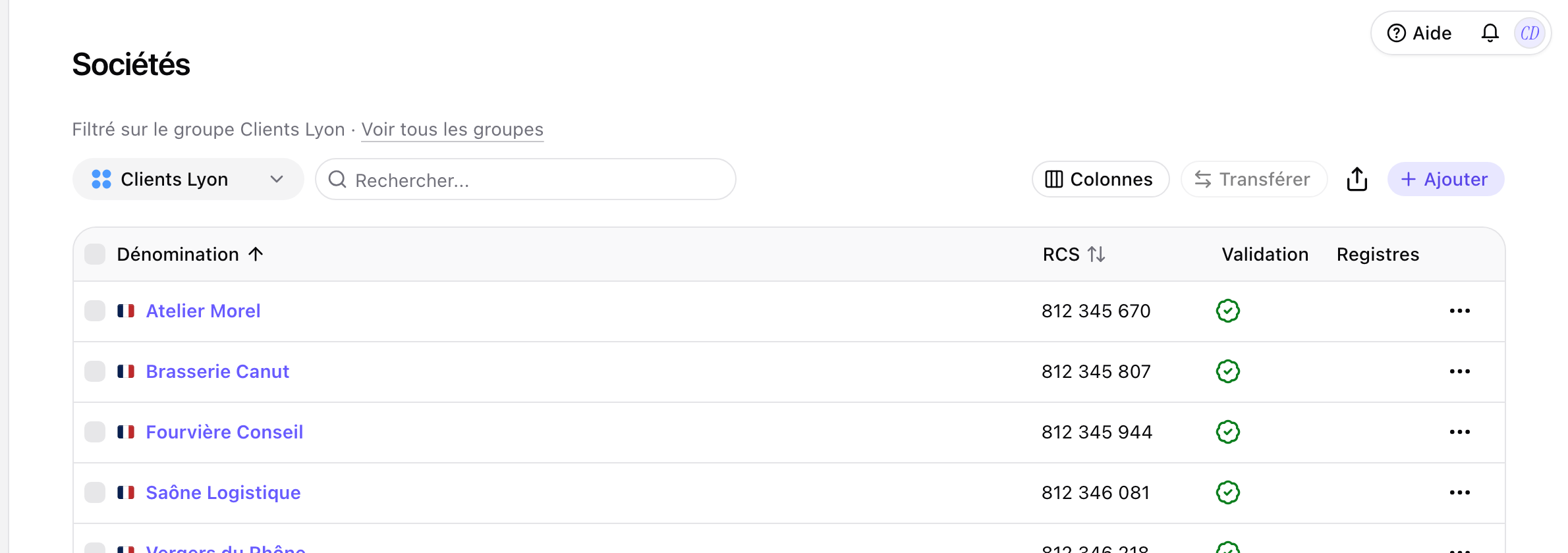
The line “Filtered on the Clients Lyon group · Show every group” reminds you of the filter, and “Show every group” removes it. The organization chart shows one group at a time: pick it in the same list.
5. Switching organization
You work for several organizations, or a client shared their company with you? In the navigation, the list of your organizations opens from the organization’s name, at the top, or from the “Switch organization” line, at the bottom. On the home page, the “My organization” widget opens the same list.
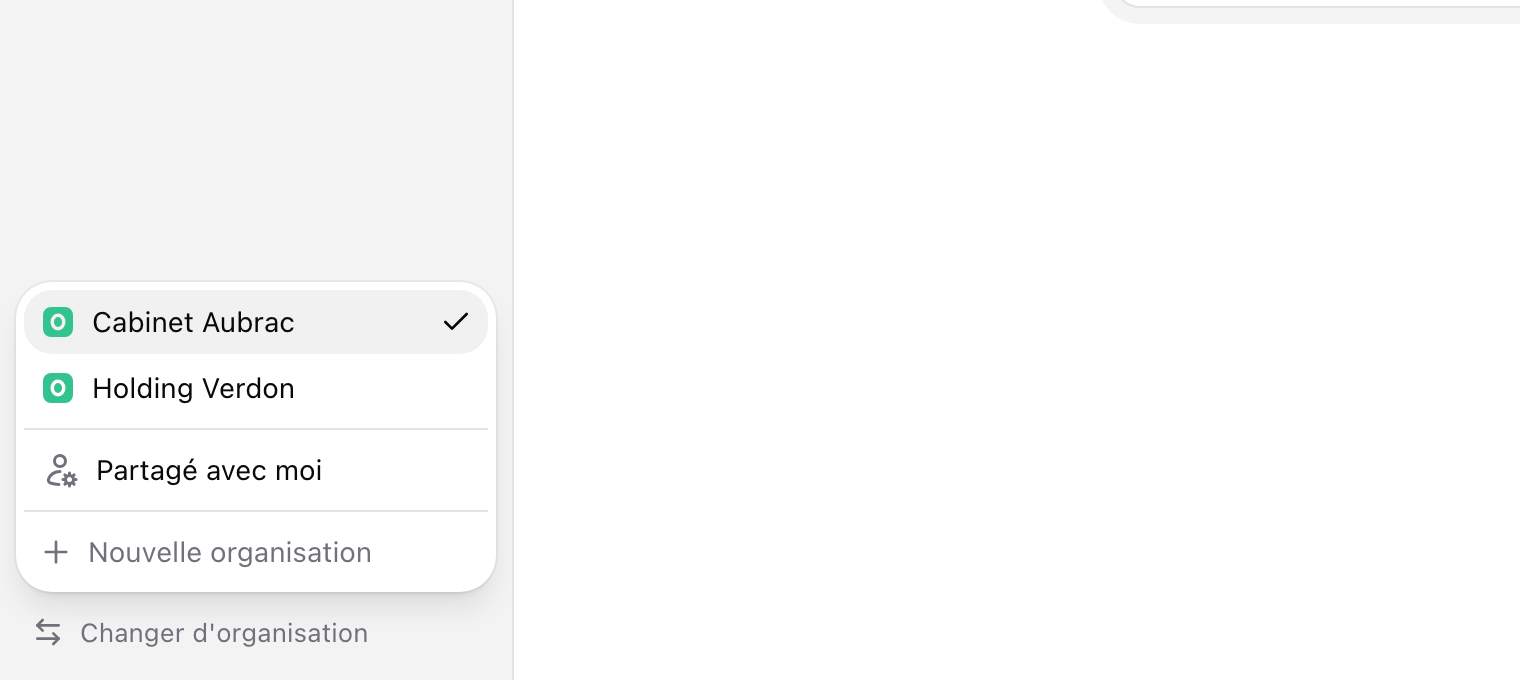
Shared with me gathers the companies you can access without being part of their organization. It has its own home.
New organization creates one.
6. Act fast: the ⋯ menu and the + button
The ⋯ menu. Each row of the navigation has its menu. It shows when you hover the row, and a right-click opens the same one. Depending on your role, it offers to add the row to favorites, add a company, rename, open access or transfer.
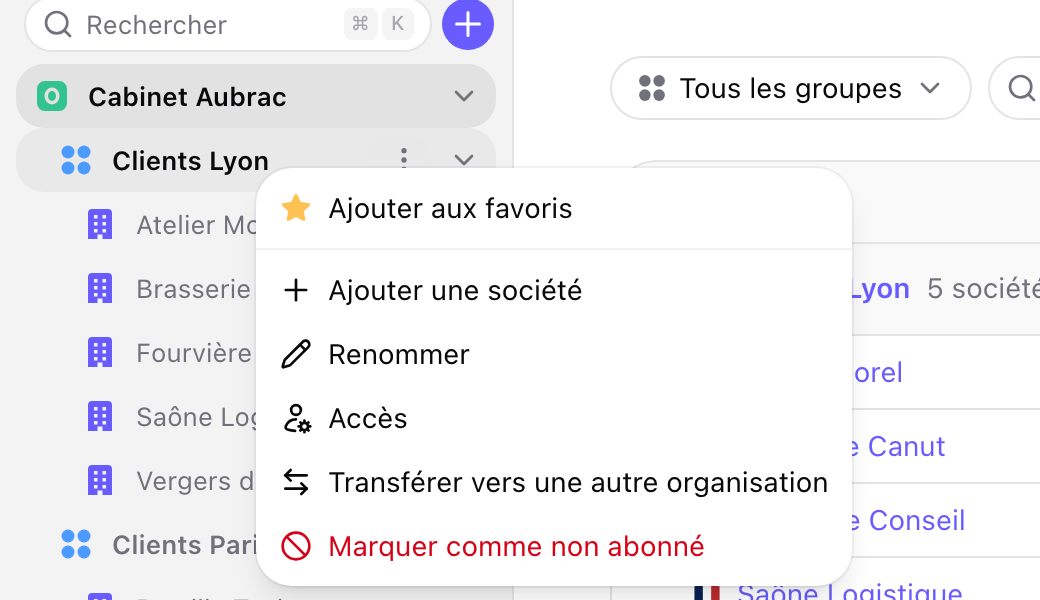
The + button. Next to the search, it creates a company, a group or an organization. “What’s the difference?” recalls the three levels. “Add a company” offers two choices:
Add an existing company, already registered;
Register a company, not created yet.
From a group’s ⋯ menu, the company is added to that group.
Going further
Who sees what, and how to give access to a colleague or a client: read the guide Organizations, groups and access.
The menu of where you are, in the sidebar. And at any moment, ⌘K or a click on the name to open the navigation and go anywhere.